¶ Using SequenceBars to Swap Out Your Gear
If you play DPS/Healer OR DPS/Tank type classes, you may find yourself needing to maintain two sets of gear and switch them out depending on the role of the gameplay you are about to engage in. While LoTRO provides an option to change your traits (which also changes your skill bars and Virtue traits) there’s no automatic way to switch between two gear sets. Here’s a way to make this process slightly easier by using the plugin SequenceBars
Disclaimer: I will assume you are familiar with installing plugins and loading it for your character. This post will cover only the SequenceBars specific steps.
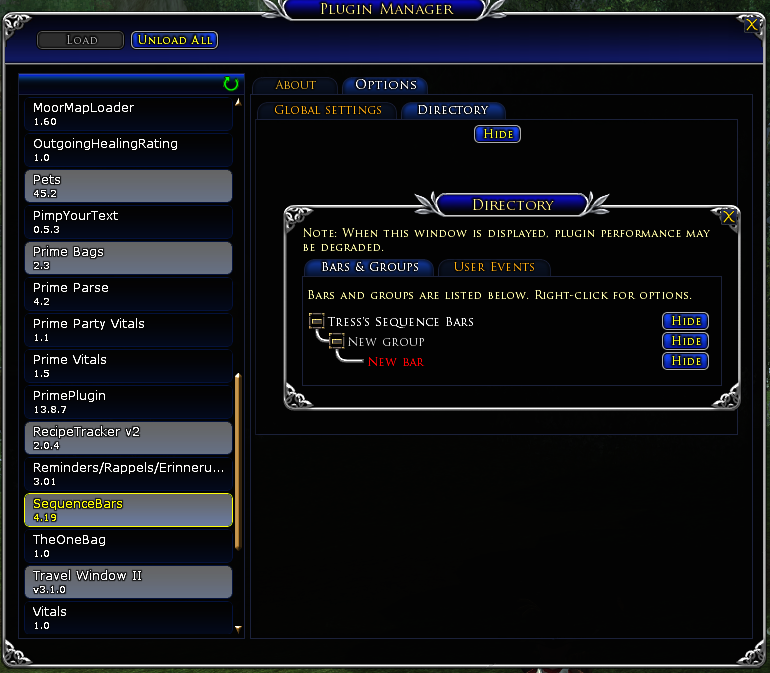
- Open Plugin Manager > SequenceBars > Options > Directory > Show
- In the screenshot you will see default SB groups
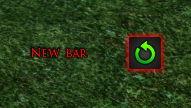
- You will also find this button, somewhere on your screen.
- In the next few steps, we will create a sequence bar to remove existing weapons and equip a new set in.
Note: I find it more reliable to remove your existing equipment first, before equipping a new set. If you don’t do this, you may not be able to equip LI’s with unique traceries equipped in each set.
- right click on the above SB icon > Edit Sequence …
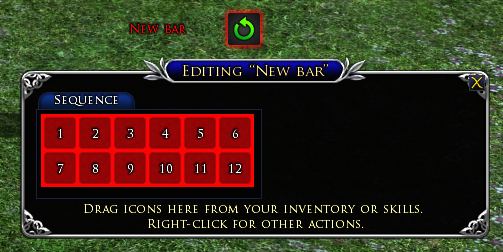
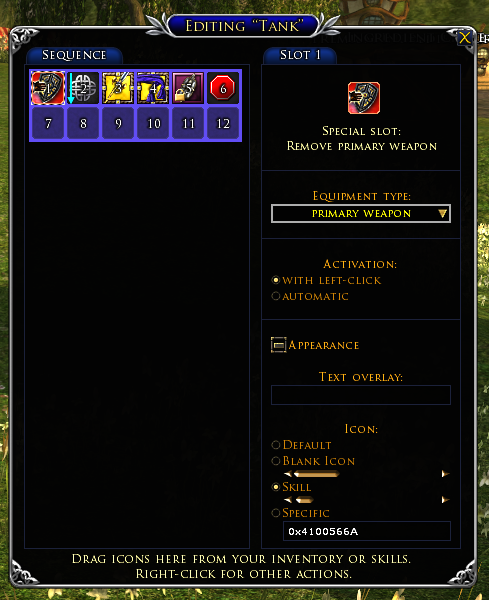
- in the Edit window, right click on the first slot (with no. 1) > Insert Special Slot > Remove Equipment
- Equipment Type - Primary Weapon
- Select ‘with left-click’
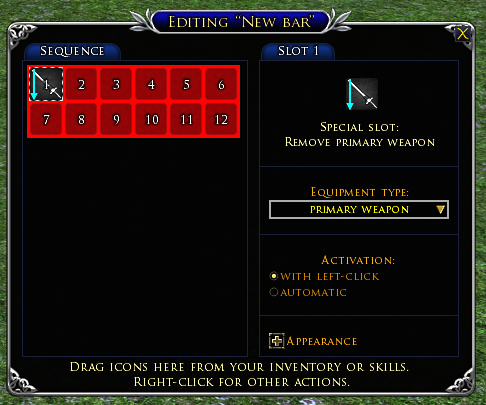
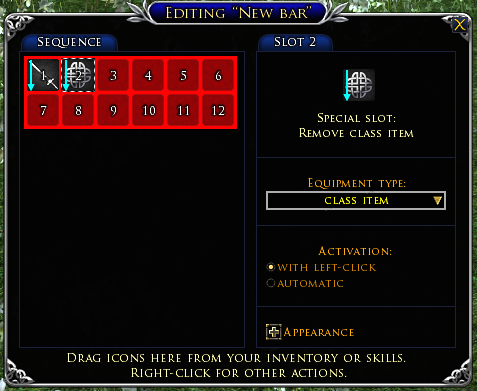
- Continue the process so both your LIs are removed.
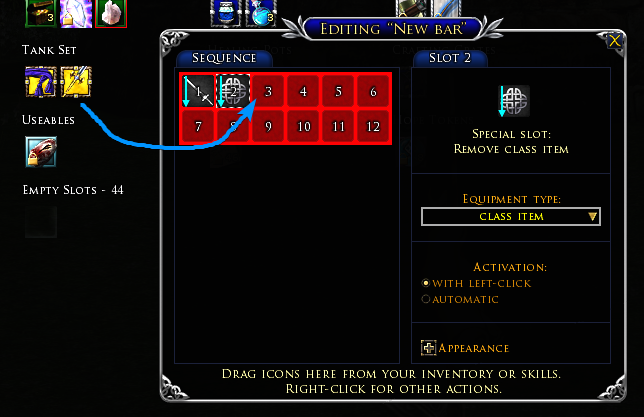
- Now to equip new weapons, drag and drop them, from your inventory into the empty slots of SB.
- After all the new weapons are added, add ‘Stop animating’ slot as the last one to, well, stop the sequence.
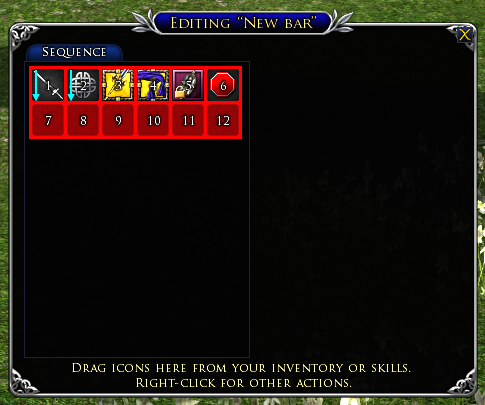
- You can now try it out by clicking on the first icon (with red frame around it)
- When you reach the end of the sequence, (the Stop sign) click on the text to reset it.
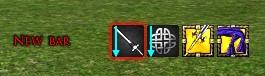
- If all is working as intended, we can now make it into a single icon, instead of a series of icons, by right-clicking on the SB > “Collapse”
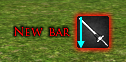
- Now let’s change its name and icon
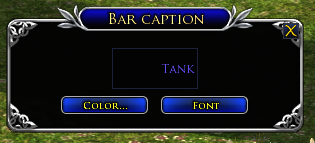
- Right-click on SB > Settings > Caption > Edit
- Right-click > Edit Sequence > Select the first icon > Click Appearance > Select Skill > Pick your preferred one
- And that’s it, you can move it around, create a new set (by cloning the first one and changing it)
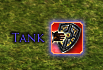
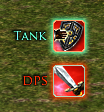
- Here’s an example of two SBs: