¶ Installing Addons with Plugin Compendium
To install plugins for Lord of the Rings Online using the Plugin Compendium, you'll first need to download and install the Compendium itself, and then use it to manage your individual plugins. It's recommended to have the game closed during the install process.
¶ Step 1: Download and install the Plugin Compendium,
- Navigate to the official download page for the LOTRO Plugin Compendium on the LOTRO Interface website.
- Download the correct version for your operating system.
- Open the downloaded file and double-click the setup file to begin the installation. Follow the on-screen instructions.
- Once the installation is finished, a shortcut for the Plugin Compendium should appear on your desktop.
¶ Step 2: Add and install plugins,
- Double-click the LOTRO Plugin Compendium icon to launch the application.
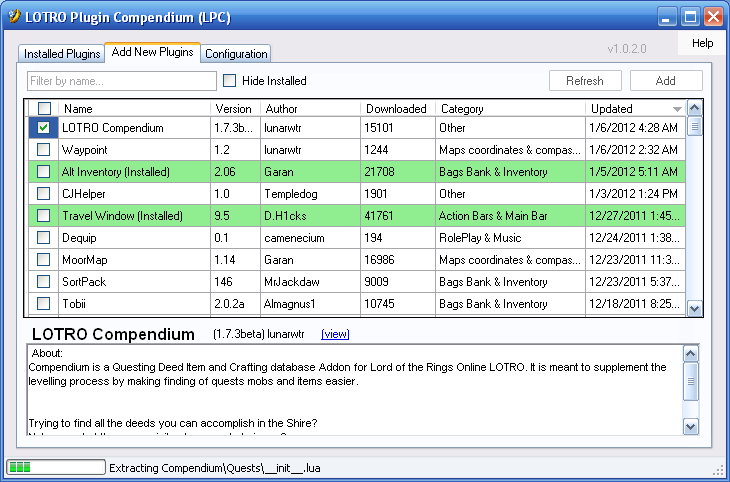
- Click the "Add New Plugins" tab.
- Browse the list of available plugins or use the search bar to find a specific one.
- Select the plugins you want to install by clicking the checkbox next to their name.
- Click the "Add" button to download and install the selected plugins. The Compendium will automatically place the files in the correct folder.
¶ Step 3: Activate Plugins In-Game
- Launch Lord of the Rings Online.
- From the character selection screen, click the "Manage Plugins" button.
- In the Plugin Manager UI, find the plugins you want to enable.
- For each plugin, use the "Automatically Load For" dropdown box to choose if it loads for all characters or a specific one.
- Enter the game world.
- You can also press Ctrl + Alt + P in-game to open the Plugin Manager and load them manually for that session.
¶ Step 4: Update plugins
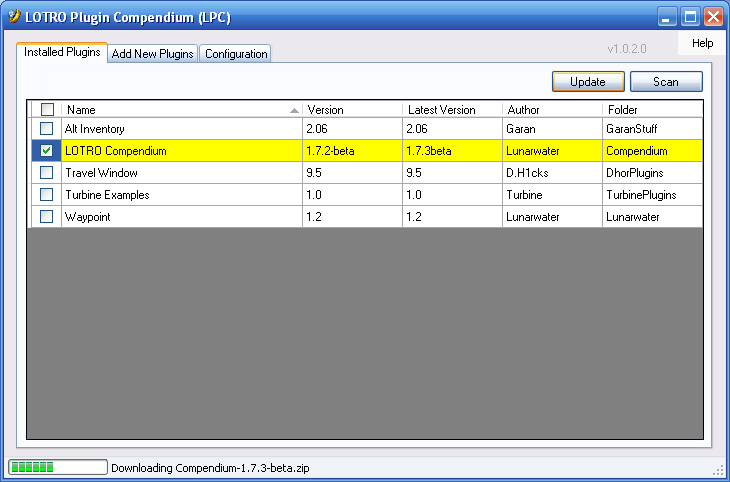
- To ensure your plugins are up to date, check the "check for updates on startup" box in the Compendium's Configuration tab.
- If you have this option enabled, the Compendium will highlight outdated plugins when you open it.
- You can then select them and click the "Update" button.